Do the following exercises. Use today's project: Session06_LoopsAndRobots
- Do the TODO's in the m3_distance_traveled.py module of today's project.
- This can be done with your robotics partner or in-class pair programming partner or individually. Just include all the names in the top of your code. For this problem you will get the sensor data for distance and use zellegraphics to show the robot moving across the screen.
- Detailed instructions are
within the m3_distance_traveled.py
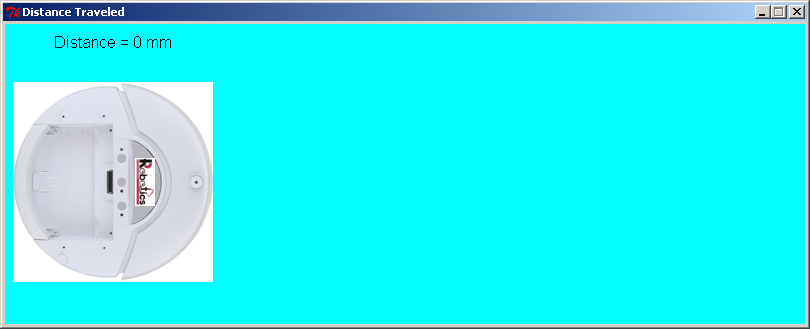
module. Here is what the opening screen might look like:
- Finish the TODO's in the code
so that all of the following happens:
- The Robot image will be
moving across the screen as the robot on the ground moves (read
'DISTANCE' sensor)
- Start the iRobot Create moving in a straight line at a slow speed
- Poll the robot every 0.1
seconds to get the distance traveled
(getSensor('DISTANCE') )
- Use the distance traveled
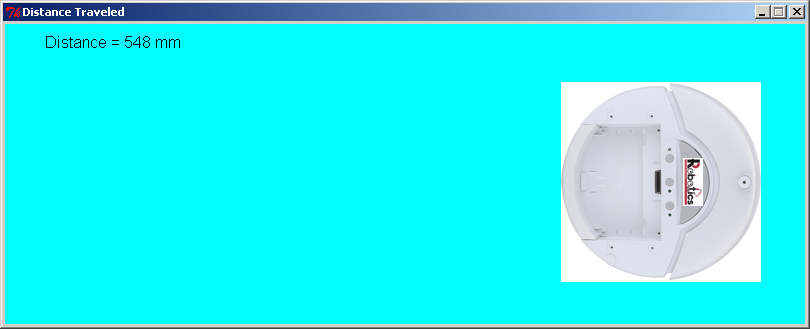
to move the .gif image across the screen moving to the right (let mm
traveled = screen pixels to move)
- In addition to the moving
.gif image moving, update the text object to display the distance
traveled in millimeters
- Note: millimeters (mm) are the sensor's default units when you call getSensor('DISTANCE')
- After the given number of
seconds, stop the robot moving but leave the window open until a user
clicks in the window
- Play around with the robot speed, time, and window size, until the robot finishes still on the screen
- The Robot image will be
moving across the screen as the robot on the ground moves (read
'DISTANCE' sensor)
- Make
sure your code has an input statement that ask what COM port to use for
the robot for grading purposes