- Checkout the FuncPlot project from your SVN repository.
- Write a program in module
funcPlot.pythat implements the following design:- Prompt the user for a file name
- Open a file with the given name
- Display a graphics window with width 720 and height 400.
- Read each line from the file. For each line, plot a point on the graphics window. You should assume the lines have the format specified in funcDump (treat the first number as the x coordinate and the second number as the y).
- Close the file
- Test your program using your
cos.txtoutput from funcDump. (Note: you must placecos.txtin the same folder asfuncPlot.pyto read it.) You may also test using the sample outputs for different functions below. (The functions are "upside down" because of the graphics coordinate system. You could fix that by using zellegraphics' win.setCoords() method if you so desired, but we won't require it.) - Commit your solutions to your SVN repository.
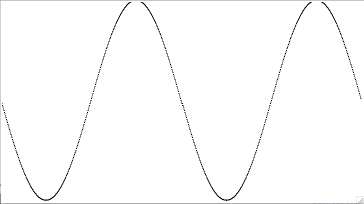
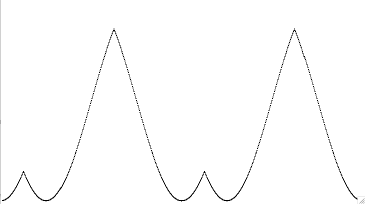
(40 points) Photo slideshow. (Note: we suggest that you do the funcPlot problem above BEFORE the SlideShow problem. Doing so will help you through some of the file reading issues that may otherwise hang you up in SlideShow.) These days, many people use their computer as a "digital shoebox" of photographs. You will write a program to present a slideshow of a number of photos, in an order that you specify in a text file.
- Checkout the Slideshow project from your SVN repository.
- Write a program in the module
slideshow.pythat implements the following design:- Prompt the user for the name of a runlist, a file that contains a list of image file names
- Open the runlist.
- Read the next image file name from the runlist file, one
at a time, and display the corresponding image in a graphics window.
When the user clicks in the window, the slideshow advances to the next
image.
Notes and Hints:
- An Image is an object just like a Rectangle or a Circle. You can find help for how to use it in the ZelleGraphics help pdf file you got on day 1 when you installed zellegraphics.py.
- Slideshow should display no more than one image at any given time. An image should be displayed as long as there are image file names yet to be read from the input file. When the user clicks on the last image, the program will end.
- If you draw a small image on top of a large one, you
can see both, which looks messy. However, in Zelle Graphics, you can
tell the window to undraw any object; for example, to undraw an
image called
photo, usephoto.undraw() - You will need to strip off the newline character
from each line you read in. Use the string class' strip() function to
do this (import string and see
help string.strip()for details). Unfortunately, slicing with a negative index (myList[:-1]) doesn't work on Windows like you might expect.
- Close the file.
- Test your program.
- We have placed 4 photos in the Slideshow project. We have also given you 3 files containing lists of those photos in various combinations: runlist0.txt has a single photo, runlist1.txt lists 3 other photos, and runlist2.txt has all 4 photos in a different order and with one repeated. These files are placed in the folder that contains slideshow.py. Run your program with each of these 3 runlists.
- Optional: Have some fun creating a slideshow of your own photographs. Notes: The textbook says "most platforms will support JPG, GIF, and BMP files."; unfortunately, it appears that JPG files don't work in Windows. So gather images of the other format or convert them to GIF using Paint or some other program and place them in the same folder that slideshow.py is in.
- Commit your solutions to your SVN repository.