CSSE 120R Final Python Robotics Project—Fall 2009-2010
Disclaimer: Some details may
still be vague; feel free to ask for clarification. Some may
also be subject to change; we'll alert you when they do.
Project Requirements
The final project for the Python part of this course is to implement
a GUI for robot control that includes reacting to another robot's
motion! The gold standard is to be able to follow another robot
around a track.
Your project must satisfy these core requirements:
-
You must complete the implementation of a GUI to control your robot.
- You must implement code to send and receive motion information
from another robot.
- All team members must
contribute to
and
understand
their project.
Most of the work on your project will be translating the guidelines
provided into a working implementation. If you are having trouble planning or getting started, get help.
It is much better (and easier) to get help early and start off with a good plan than to try to hack a poor design
into a semi-functional program in the final days before it is due.
Milestones
To make sure that you are on-track to complete your project, you
must meet the following milestones.
Each milestone will contribute to your overall project grade. Each milestone must be done
at the beginning of
the specified class session (no 24-hour extensions).
This is so we can help you in class as needed. For each milestone,
you must commit your work to your repository and include a clear
commit message stating that that milestone is completed.
-
Session 16 (mid session) -- Checkout the
project. The name of the repository is
http://svn.cs.rose-hulman.edu/repos/csse120-201010-teamXX
where
XX
is your team number as announced by your
instructor
-
Check out the RobotFollower project, and find the module
robotFollower.py
within it. Each team member should independently
add his or her name to the comments at the top of the file.
This involves each of you editing the file, so it requires
careful use of SVN. For example, the first team member should update,
edit, then commit, then the second member repeats this cycle,
then the third. Everyone should then update.
Follow this cycle of update-edit-commit whenever you make changes to your program.
-
Session 17
- Basic GUI. At this stage, you must allow the user at least
to connect to a port and disconnect. You must also allow them to drive the robot directly (forward,
reverse, spin left, spin right, stop) and follow a line.
- LineFollowing works and is "interruptable" by
the user. That is, you must integrate your line
following into the program's main event loop so if another button
(like one of the direct drive buttons) is pressed during line following, it responds to it.
(Therefore, this requires more than just calling your
pre-written line following function; see the provided code
for hints.) Be ready to show off the basics to your instructor and the TAs.
-
Session 18 — Motion information sent and received.
Here, you need to be able to send information about your
motion to another robot and receive it. You should do a basic test
on your own, like making sure you can properly receive your own IR signal.
You'll need to have another team with you to test this fully, so
Session 18 will be devoted to working in class with another team on
testing.
-
Session 19 — Core functionality completed.
Here, you'll show off your whole program to your instructor and the TAs. This is a "dry run" of tomorrow's demo, so you have time to make any needed adjustments.
- Session 20 — Program finished and fully functional.
You have
5 minutes per team (only) to demo your robot. Make
sure it works reliably to get the most points you can in your 5
minute demo.
- Session 21 — Team evaluation of your partners.
This can be found in Angel under Lessons.
Grading
Here is the rubric we will use to
grade your program. Note also:
Project grades will be based on both individual and group results.
We will check off each project milestone, to make sure you are making steady progress.
The final program will be graded based on the proper functioning of your program.
The program will also be graded on your design, coding style, and documentation, including SVN commit messages.
The grade can also be bumped up some due to your creativity. While
you can earn an A by following the requirements in this document,
sometimes students think of even cooler things to do to demonstrate
their understanding. What challenges you?
Each team member will be required to complete an evaluation survey about his or her own performance and that of each of his or her teammates.
We will use these surveys and our own observations to assign individual project grades.
Details
GUI
Your GUI must support as a minimum:
- Connecting (to the specified port number) and disconnecting from your robot.
- Driving your robot directly at the specified speeds.
- Line following.
- Sending your motion information as you move.
- Responding to another robot's motion in traffic (best would be while going around a
line).
- Playing a very short song.
Example:
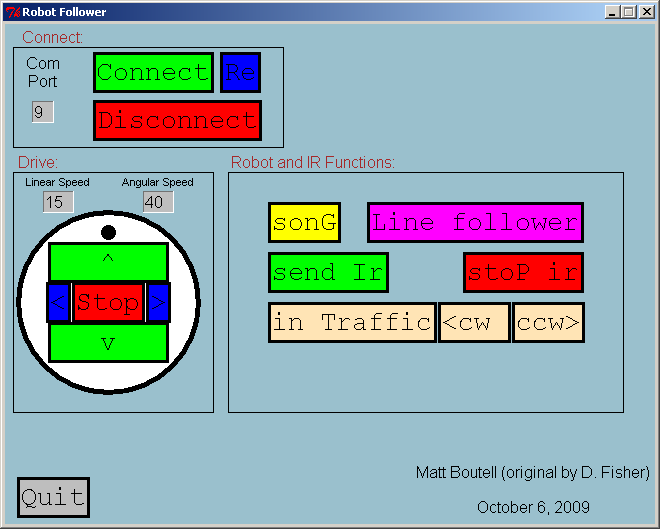
This is just a sample of what our GUI looked like. You can use the
given layout or make your GUI look
different, but you shouldn't waste hours moving rectangles. Focus on
the interesting parts of the project, like robot following in traffic. The capital
letter shows the quick key for each button.
We have included a RobotButton class in the project. This will allow you to make any additional buttons you'd like. See
how we made the given buttons as an example.
Note: the Re button is for Disconnect and Reconnect. This button
seems worthless but is a good solution to the sensing garbage problem.
With it, if one senses garbage, one can click on the
Re button to disconnect and connect again, which fixed the sense
garbage for us almost every time.
IR Communication
The IR sensor on the front of the robot can receive a single byte of
information from another source, whether it be another robot, the
docking station, or even a virtual wall. Furthermore, the robot can
repeatedly send a single byte out of its omnidirectional IR transmitter (below). Between the two, we have the ability for two robots to communicate with each other.
We will implement a very simple protocol to help two robots navigate in
"traffic", so they don't hit each other.
Protocol
Assume that two robots are travelling around a track. To keep from bumping into each other, they need to communicate their direction (clockwise or counter-clockwise) and their linear velocity.
(Angular velocity doesn't really help on a track.) But, we can't send infinite precision data: we only have 1 byte to work with.
A byte is an 8-bit number, like 01011100 (which has value 0*2^7 +
1 * 2^6 + 0 * 2^5 + 1 * 2^4 + 1 * 2^3 + 1 * 2^2 + 0 * 2^1 + 0 * 2^0 = 64 + 16 +
8 + 4 = 92). There are 2^8 possible values of a byte, ranging from 0-255.
On the robot, 255 means that no signal is seen. We get to define
the other 255 values. We could use any protocol we wish, as long as we
standardize. Therefore, I decree the following standard:
- The first bit will be used to send direction: 1 = clockwise, 0 = counter-clockwise.
- The last 6 bits will be used to send linear velocity in cm/sec. The max linear velocity is 50 cm/sec, which is less than 2^6 -1 = 63, the max value that can be sent with
6 bits, so it's more then enough space.
There should be no reason to have to send negative numbers, since robots won't be backing up as they travel around the track.
(Imagine trying to do line following while driving backwards -- without cliff sensors on the back of the robot, ha!)
- The second bit is reserved for your discretion. Two teams may agree to both use it to communicate some secret information, for example.
Sending Motion Information
If the user clicks on the send IR button, it should start sending its
current motion information. It it's stopped, that will be 0 or 128, depending on its direction.
Your program should start assuming counter-clockwise (0). When the drive forward button is
pressed, it should change the linear velocity it is sending to that value. If
any other drive button is pressed, it should send a linear velocity of 0. When
the CW or CCW button is pressed, it should change its direction if needed. You
should also change the linear velocity sent anytime
you change the linear velocity of your robot, like when you are line following.
(If you are doing line following using drive or driveDirect, you'll
need to convert to a linear velocity.) You may think of other times you'll need to change it.
Receiving
Let's say you receive the byte 153 from another robot. Can you see
that the other robot must be travelling clockwise at a rate of 25
cm/sec? (If you think about this, you should see that the conversion
back and forth from a byte to a direction + linear velocity is pretty
straightforward. And if not, feel free to ask!) How my robot responds to
that message depends on how my robot is moving.
We need to agree on who has the "right of way" while driving.
Let's assume the following cases:
- The robots are travelling in opposite directions. Let's say that the
robot travelling clockwise has the right of way. Therefore,
- If my robot is driving counter-clockwise, it needs to do
an about-face (and start driving the other direction,
ideally). Turn at a rate of 45 degrees/second for 4 seconds.
- If my robot is driving clockwise, it needs to wait for the other robot to do an about-face, so sleep for
5 seconds (to give it a small head-start), then start driving again. Hopefully, it can
then catch the robot in front. If so, that leads us to case 2 (next).
- Both robots are going the same direction. The robot in back can see the robot in front, but not the other way around.
The only way that the back robot could suddenly see the front robot is if it
were driving faster than the front robot.
The robot in back should respond by either:
- stopping altogether so it doesn't bump the robot (simple, but
boring)
- slowing to a crawl, so it hopefully doesn't bump it (almost
as simple, but better)
- attempting to match its velocity to the other robot's, so they travel together (this would be
extremely cool!)
Hardware
- Omnidirectional IR Transmitter.
This is the "hat" with 8 IR LEDs that sits on the BAM (wireless
receiver) module. Place it on top of your BAM and plug the
red wire into
+5V (there are two holes from which to choose) and the black wire into
LD1, both on the back of the BAM.
- Blinder. This is a little black ring that fits on the IR receiver. It blocks out signals from all directions except one, which is important so you avoid cross-talk
(receiving multiple signals at once that it can't distinguish).
Hint: Place the opening towards the back (your own transmitter) to test if you can receive your own signal.
Typical usage is to have the opening towards the front, so you can receive transmissions from robots in front of you. Get one from me if you don't have one.
Demo
Each team will have a short amount of time (~5 min) in class to demonstrate their program's
interaction with another robot to the instructor and the class.
You will be judged on your preparedness, your program's functionality and how well
each of the team
members can explain the code. (This is to encourage you all to work on the code
together and to contribute to it.)
Ask me ahead of time if you want to demo your program with a specific
team.
Suggestions
-
Plan first! Think about how to use top-down design and/or dictionaries. Get help early if you need it!
-
Functions are your friends. Well-written ones will make your life so much easier! Encapsulate functionality!
-
You will likely have certain information that many functions will need to
access. You may want to put all this information in a
dictionary object and pass it into the functions. I created a robotInfo dictionary that contained the robot itself, its
direction, its linear velocity, and if it was currently sending IR information.
That worked well.
-
Test early and test often. Don't write more than a handful of lines
of code at a time without testing it. Sometimes, this will
mean writing test code that doesn't make it into your final
submission. Welcome to the real world of software development!
-
You will likely want to keep track of the various states your robot
is in, such as whether or not it is currently sending IR information
and whether or not it is currently line following or robot following. You can use
Boolean variables for these and check them each iteration of the
event loop to see if you have to do that step, like drive a tiny bit
around the track. The starting code already includes Booleans
for lineFollowing and robotFollowing.