-
Write a program,
funcPlot.py, that implements the following design:- Prompt the user for a file name
- Open a file with the given name
- Display a graphics window with width 720 and height 400.
- Read each line from the file. For each line, plot a point on the graphics window. You should assume the lines have the format specified in funcDump (treat the first number as the x coordinate and the second number as the y).
- Close the file
-
Test your program using your
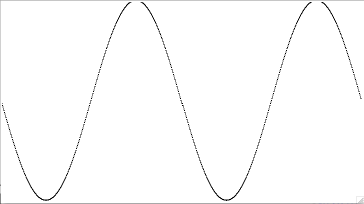
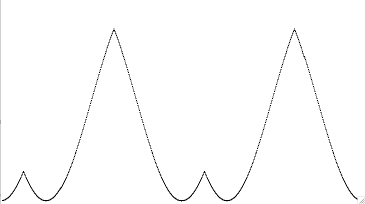
cos.txtoutput from funcDump. (Note: you must placecos.txtin the same folder asfuncPlot.pyto read it.) You may also test using the sample outputs for different functions below. (The functions are "upside down" because of the graphics coordinate system. You could fix that by using zellegraphics' win.setCoords() method if you so desired, but we won't require it.) - Submit your Python source file to the funcPlot Drop Box in the Homework 6 folder on ANGEL.
- Prompt the user for the port to which they are connected.
- Prompt the user for the file name and open the file with that name.
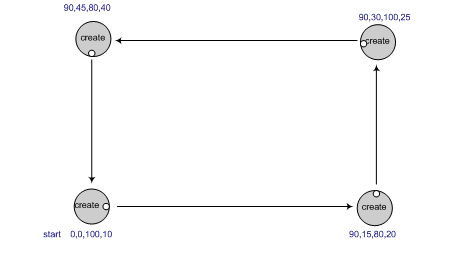
- Read each line of the file. Each line will contain 4 values (
turnAngleInDeg, turnVelocity, fwdDistanceInCm, fwdVelocity) - For each line, turn the robot based upon the turn angle and speed,
then drive the robot forward based upon the forward distance and velocity.
For example (this is box.txt):
- You will likely use the go(), sleep(), and stop() functions to move the robot, as you did last time. This is easiest, since it sends a command, waits the right amount of time (which you'll have to calculate), then sends the next command, etc.
- Don't forget to close both the file and the connection to the robot (using robot.shutdown()) at the end of your code!
- Another option to sleeping, that some may wish to try, is to use feedback from the encoders to drive a certain distance. (An encoder is a mechanical device attached the robot's wheels to measure how far it has traveled). In this paradigm, your program sends all the commands at once, and the robot does them in the order it receives them. The advantage is that you don't need to calculate how long to sleep, the waitAngle() and waitDistance() methods do that for you. Caution: once you send the robot the shutdown() command, it will stop immediately; the workaround is to insert a long sleep before the shutdown command. See the pycreate documentation for details.
- What you notice is that the more the robot moves the less accurate it will become in moving the prescribed distance or returning to the same point. This robot drifting is called odometry error. Odometery error means that the longer the robot travels, the sensor used to calculate the distance traveled (the encoder) begins to accumulate error. This error is based upon wheel slippage, friction, uneven surfaces, wobbling wheels or sensor inaccuracy. In other words, the robot may “think” it is at a different place in the world than it actually is. This is a common problem in robotics research and it is necessary to add hardware or write control algorithms to combat this. For your homework, it is important to recognize the problem but you will not modify your program to compensate for it.
(5 points) Challenge Problem: This problem is not required, but is an interesting extension that you might like to try.
- Create a version of funcPlot.py that rather than just plotting points, draws lines between consecutive points.