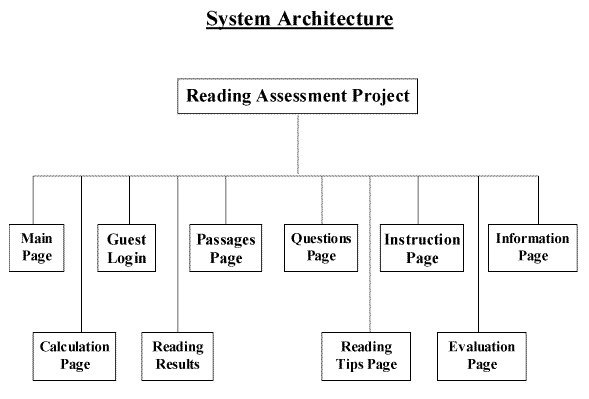
Due to the nature of this project and the design document, we have been using the event-oriented decomposition and outside-in design methodologies. These design methods seem to fit the project best, based on the client’s and programmer’s needs and the requirements document. Due to the lack of a conceptual design needed for the client, the design document is to be primarily utilized by the programming team, this also eliminates the need for modular decomposition, since no low level explanations of organization are needed. The event-oriented decomposition fits well in this situation because the page formats have been well defined by the client so the main design task is to spell out how certain events change the state of these pages. This also allows work to be started on the general (high level) states while requirements gathers information needed for a more detailed design. Outside-in design is similar to event-oriented decomposition in that it allows the design team to work with the inputs and outputs to the system without immediately considering the specifics of what the system does with this data. This will allow the user to make different inputs while the software decides how to rank the users inputs. Object-oriented design is not used because the Outside-in design is more suited for this software. Data-oriented decomposition is not used since user events are not supposed to change the working of the program, it should continue to function normally.
This document has been produced using supporting work from the class website (http://sework.cs.ttu.edu/proj/design_template.htm). This provided an outline on GUI interface design as well as various other tips.
Some similar programs to this one are “Ace Reader” and “Mindplay.”
Ace reader is a “Productivity and Self-Improvement Educational reading tool.” Its significance to this project is that it has a diagnostic reading assessment tool included in the software. This lets the user see their current reading level. The product is available with various versions from $24.95-$566.00
Mindplay is another reading diagnostic tool. It has a phonics test and a reading comprehension test. Their reading test runs differently from our Reading Assessment program in that rather then having the user read a large paragraph the fill in answers, it gives the user a small paragraph and asks the user to choose words that best fit within the sentences. Similar to our Reading Assessment program, the program takes your answers, and your time, then calculates your grade. Mindplay offers a free test and is recommended for grades 2-10.
Resources
http://www.mindplay.com/
http://www.test4free.com/
http://www.acereader.com/
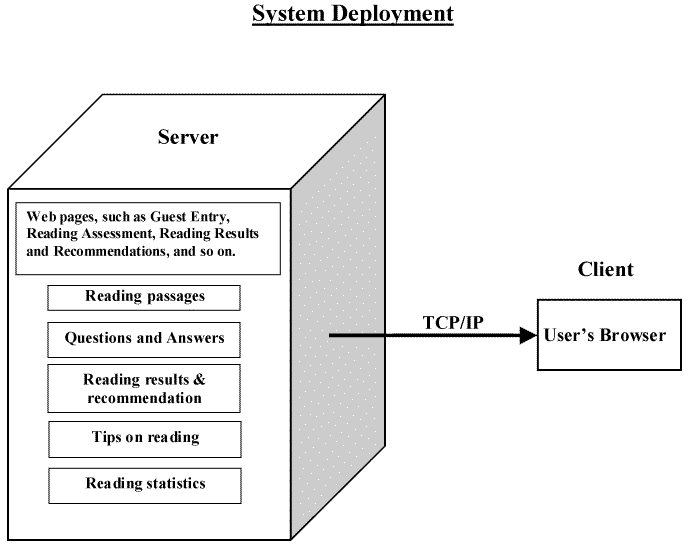
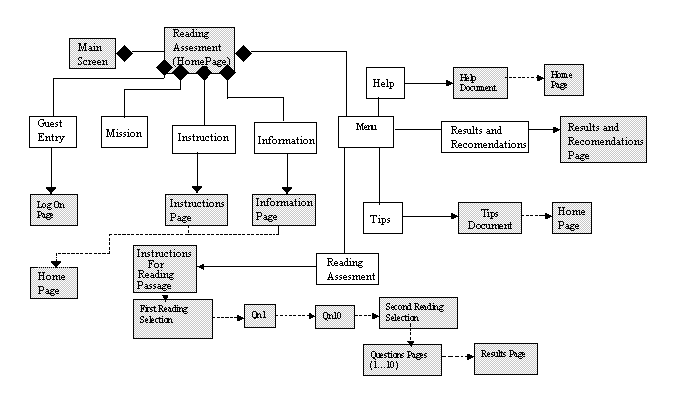
Every shaded box represents a web page and every other box represents a link except the mission and menu box. Diamonds represent composition, Straight lines represent association, Straight lines with arrows represent navigation, and Dotted lines with arrows represent dependency.
The Main Screen shall look as shown in the following diagram:
Display

Display Components
The Guest Entry Screen shall look as shown in the following diagram:
Display
Display Components
Error Handling
Error handling: User is shown a message box stating that they must complete the
information before continuing.
The Information Screen shall look as shown in the following diagram:
Display
Display Components
The Instructions Screen shall look as shown in the following diagram:
Display
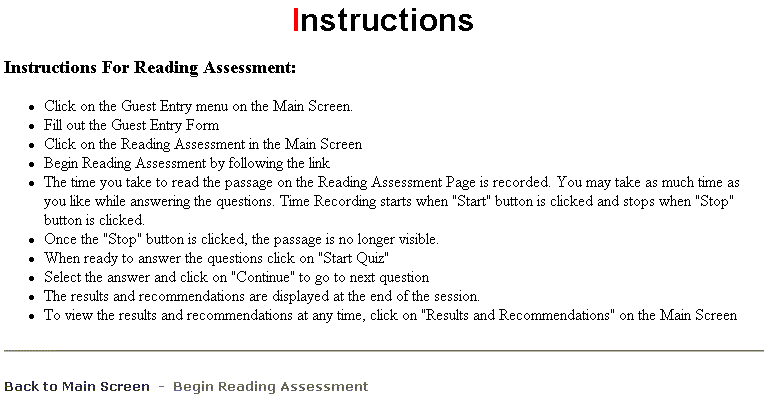
Display Components
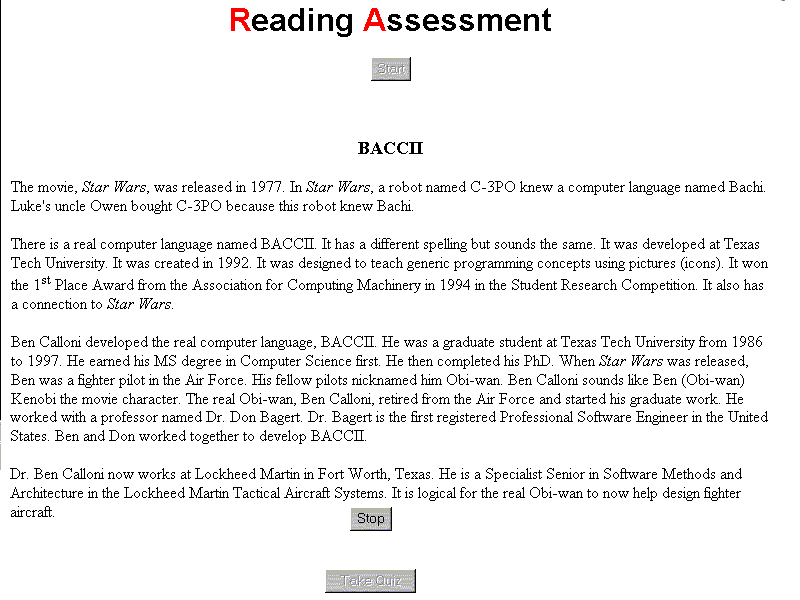
The Reading Passage Screen shall look as shown in the following diagram:
Display
The Questions Screen shall look as shown in the following diagram:
Display
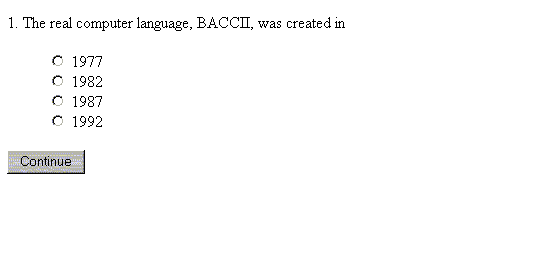
This page shall have one question. The answer shall be stored as a variable and use in the calculations of 2.3 .
Error Handling
If the User tries to proceed without answering the question a message box will appear stating that the user must answer to proceed.
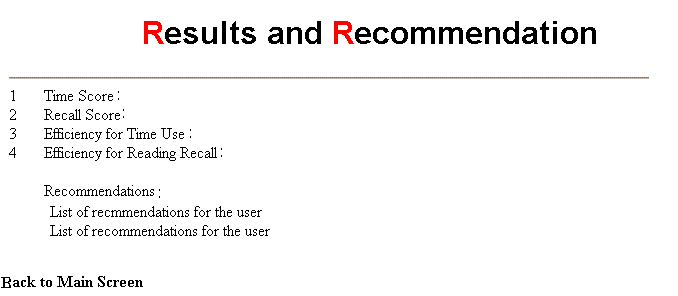
The Results and Recommendations Screen shall look as shown in the following diagram:
Display
The Tips on Reading Screen shall look like the following diagram:
Display
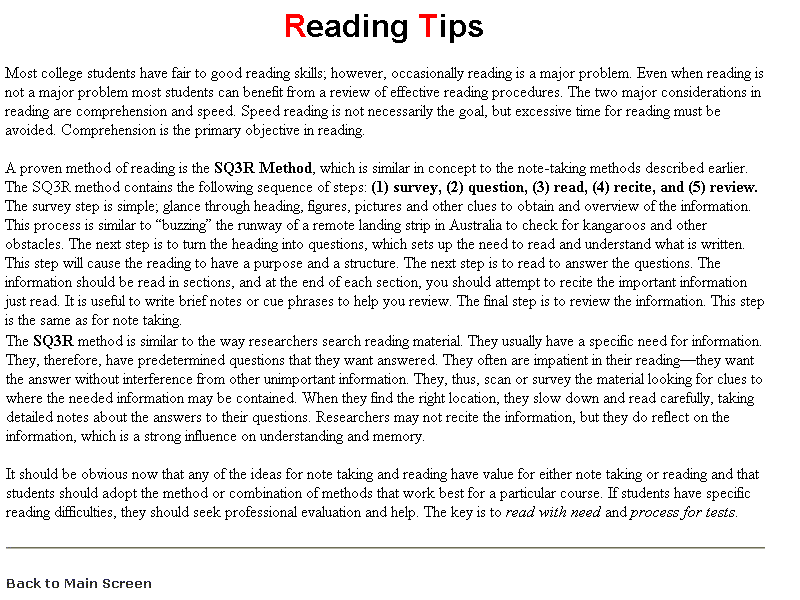
Display Components
The Evaluation Screen shall look like the following diagram:
Display
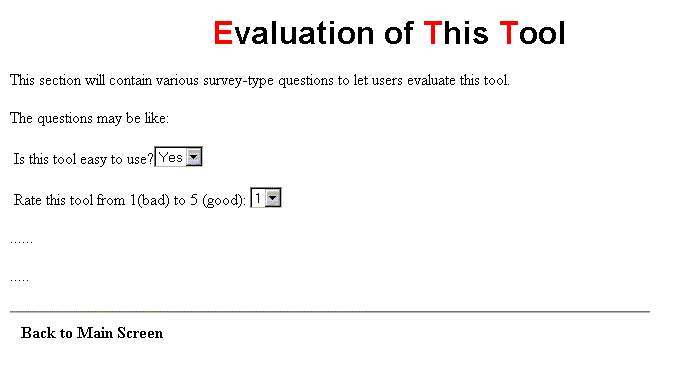
Display Components
2.2.10 Error Screen
Display

Display components
Results and Recommendation
· Time Score = 251 · Recall Score % = Number Right
Reading Time 0.1
· Efficiency for Time Use = Individual Time Score
Average Time Score for college students
· Efficiency for Reading Recall = Individual Reading Score
Average Reading Score for college students
· If Efficiency for Time Use is less than or equal to 0.5 then recommend the individual seek professional assessment.
Your Time Score: (display Individual Time Score here)
Your Recall Score %: (display Individual Recall Score here)
(message of recommendation to the user according to the Efficiency for Time Use or the Efficiency for Reading Recall should come up here. wording is provided by client)
o Individual Recall Score = Number Right / 0.1
o Efficiency = Individual Recall Score / Average Recall Score for college students
o If Efficiency > 1, set Efficiency = 1.
o If Efficiency <= 0.5, recommend professional assessment
○ Output: Individual Reading Recall Score
PRINT button
3.2 Files
3.2.1.1 the filenames shall be in the form *.htmf
example: BACCII.htmf
TexasTech.htmf
3.2.1.2 each file will be listed in the database under the filename column of the passages table
3.2.1.3 each file will contain a passage and the passage will be an html fragment. (the fragment is the html between the body element on a normal html page
| Primary Key |
| Questions |
| Column Name | Type | Description |
| PassageID | int | associates questions with correct passage |
| QuestionNum | smallint | the question number |
| Question | nvarchar | question |
| Choice1 | nvarchar | one answer choice for question |
| Choice2 | nvarchar | one answer choice for question |
| Choice3 | nvarchar | one answer choice for question |
| Choice4 | nvarchar | one answer choice for question |
| Answer | tinyint | number from 1 to 4 corresponding to the column name of the choices |
3.3.2
| Passages |
| Column Name | Type | Description |
| PassageID | int | unique ID that identifies which passage |
| Filename | nvarchar | name of the file containing the passage |
| PassageName | nvarchar | name of passage |
| FogIndex | float | number indicating reading difficulty of passage |
| MeanTime | float | average reading time for college students |
| StdDevTime | float | typical standard deciation of time for particular passage |
| MeanCorrect | float | average number of correct answers for college students |
| StdDevCorrect | float | typical standard deviation of correct answers for college students |
| Words | int | number of words in passage |
| Sentences | int | number of sentences in passage |
3.4 Additional Information
3.4.1 Passage Title:
3.4.1.1 Black
3.4.1.2 12 point Times New Roman
3.4.1.3 Left Justified
3.4.2 Passage:
3.4.2.1 Black
3.4.2.2 10 point Times New Roman
3.4.2.3 Left Justified
3.4.2.4 Paragraphed and Spaced as in Source File
The external systems designed for the software system shall include Internet Information Server (IIS) ASP.dll, global.asa, SQL server, ADO objects, VB script, and FrontPage and Internet explorer 4.0.
4.1 Internet Information Server (IIS)
IIS version 4.0/5.0 and can be run on Windows 95,Windows98, Windows NT, Windows2000 and comes with ASP 2.0 as standard.
This software/interface loads all the associated files needed for storing and executing the ASP page.
4.2 ASP.dll description
When a client (browser) requests an ASP page from the web server, the server passes the request to ASP.dll, which first checks whether global.asa is executed.
ASP.dll executes global.asa if it is not executed.
When the user requests the questions page, a request is in turn passed on to ASP.dll which processes the request
4.2.1 ASP.dll
This file is stored in the directory C:\windows\system\inetserv
If you can not see it, make sure you have turned the show hidden files option in windows explorer.
4.3 Global.asa file
The file global.asa is a text file that contains details about an ASP application, such as when it should begin and end. Each application has only one global.asa and is placed in the virtual directory root.
The two main components of this file are Application and Sessions. An application starts when the first user accesses a web page in the system. A session starts when any user accesses a web page in the system.
This file shall consist of four main functions namely Application_onstart, Application_onend, Session_onstart, and Session_onend. It needs to contain the commands to open connection and access the data store in the SQL server.
4.3.1 Sample of global.asa
<Script language = "vbscript" RUNAT = "server">
Sub application_onstart
Vbscript goes here…
End sub
Sub application_onstart
Vbscript goes here…
End sub
Sub session_onstart
Vbscript goes here…
End sub
Sub session_onend
Vbscript goes here…
End sub
</script>
4.4 SQL Server:
Connection to the database server shall have to be established in order to store data entered by the users and to retrieve information from the data store to the users.
The database shall contain the links to passages and the questions for the users.
4.4.1 ADODB. Connection
Establishing a connection to the database shall have to be done using the command
Dim objconn
Set objconn=server. Create object ("ADODB.connection")
The database connection may be opened by sending the system dsn filename located on the computer on which the software runs, database username, and database password.
Call objconn ("dsn name","username","password")
Open the connection with the command
Objconn.open ()
When there are no more users, close the database connection
Objconn.close ()
4.5 ADO objects
The ADO object enables interaction with database-stored procedures. It is used for running processes against a data store.
This helps to load the passages and questions from the data store and present to the user for viewing and analyzing it.
It helps to insert questions for the passages and retrieve it to the users.
4.5.1 ADODB.Command
These can be commands that return record sets or they could be commands that do not return any values. It is used to update the records in the dataset.
Set objcommand =server. Create object ("ADODB.command")
Objcommand.execute
4.5.2 ADODB.Recordset
These commands can be used to access the records in the database. We can modify or display all the records of a data store.
Set object =server. Create object ("ADODB.Recordset")
ObjRec.execute
ObjRec.open"SELECT " * from table name
4.6 VB Script
This language helps to present user interactive pages and shall have to be declared as the first command while writing the ASP codes.
This script used in the ASP file helps to design the home page, guest entry forms, question pages and the result page
4.6.1 Script language
<Html><head>
<Title>an example</title>
</head>
<Body bgcolor=blue>
<P>today’s date is
<Script language =Vbscript>
Document. Write (Date)
</script></body>
</html>
4.7 Front Page
Front Page, 98/2000 helps to modify/create the web pages and presents it effectively to the users. This Interface helps to modify the guest entry page, logon page, home page and can make us preview the web page before presenting it to the users.
4.8 Internet Explorer 4.0
IE 4.0 shall have to be installed in order to visualize the working of the software. The users need this to use the software to evaluate their performance, and get the results.

5.1.1 Guest Login Page

5.1.2 Passage Page

5.1.3 Tips on Reading Page

5.1.4 Instructions Page

5.1.5 Information Page

5.1.6 Reading Results Page

5.1.7 Evaluation Page

5.1.8 Calculations Page
There shall be the following calculations:
· Amount of time spent on reading the passage
· Questions answered correctly “z score”
· The standard deviation of time for reading the passage
· Average reading time for college students
· Average number of correct answers for college students
· Typical standard deviation of correct answers for college students
Efficiency for time use
5.2 Use Cases
Use Case 01: Main Page - Reading AssessmentOverview
The main page’s function is to allow the user to reach all areas of the Reading Assessment site. The main page displays the Mission Statement along with links to: Guest Logon, Instruction, Information, Reading Assessment, Results and Recommendations, Reading Tips, and Evaluation of this Tool.
PreconditionsNone
Scenario| Action | Software Reaction |
| 1. Guest Logon is selected | 1. User is brought to Guest Log on page |
| 2. Instruction is selected | 2. User is brought to Instruction page |
| 3. Information is selected | 3. User is brought to Information page |
| 4. Reading Assessment is selected | 4. Reading Assessment to Information page |
| 5. Results and Recommendations is selected | 5. User is brought to Results and Recommendations page |
| 6. Reading Tips is selected | 6. User is brought to Reading Tips page |
| 7. Evaluation of this Tool is selected | 7. User is brought to Evaluation of this Tool page |
User is taken to the desired site
Required GUINone
ExceptionsUser is logged out of the system but the options for 4, 5 and 7 are still selectable. They system shall take the user to the error page.
Use Cases UtilizedNone
Timing ConstraintsAfter X minutes of inactivity, log the user off of the server.
Use Case 02: Guest Entry Logon
Overview
The Guest Entry page’s function is to log the guest onto the server and grant the user access to the Reading Assessment test.
PreconditionsNone
Scenario| Action | Software Reaction |
| 1. Drop down Menu of age is selected | 1. System takes note of age selected from a drop down menu ranging from 10-70 years |
| 2. “Is English your first and primary language?” - “yes” or “no” radio button selected | 2. System takes note of whether ”yes” or “no” is selected |
| 3. Drop down Menu of “How long have you studied English?” is selected | 3. System takes note of years selected from a drop down menu ranging from 1-20 years |
| 4. Drop down Menu of “How long have you lived in a country where English is the primary language?” is selected | 4. System takes note of months selected from a drop down menu ranging from 1-60 years |
| 5. The “Submit” button is pressed | 5. System stores 1, 2, 3 and 4 into the Data base. User is taken back to the Main Page. |
Scenario Notes
After a successful “Submit,” user is logged on and taken back to the main page. The Main Page link to “Reading Assessment” is made available.
Required GUINone
ExceptionsIf user clicks on Submit with out first filling out all fields, a pop up should appear stating “Fill out all Fields to proceed.”
Use Cases UtilizedNone
Timing ConstraintsAfter 10 minutes of inactivity, log the user off of the server.
Error messages
None.
Files
accessed
Main
Page, Reading Assessment Page, Quiz Page, Passage Database.
Files
changed
Reading Assessment Page, User Information.
Use Case 03:
Passage Page
Overview
The Passage Page
contains the passage to be read by the user.
This passage is displayed after the “start” button is clicked by the
user with their mouse. When the “start” button has been clicked, the passage
page retrieves a random passage from a database of passages and displays that
passage. The timer is also started,
and a “stop” button appears at the end of the passage.
When the “stop” button is pressed, the timer is stopped and a link to
the Quiz page appears.
Preconditions
Scenario
| Action | Software Reaction |
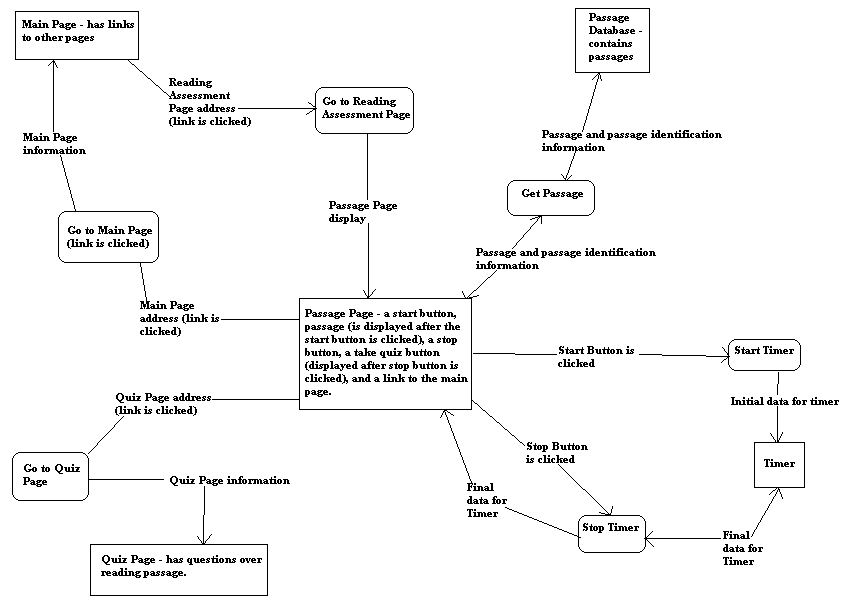
| 1. The user clicks on the links to the passage page (labeled "Reading Assessment") on the Main Page. | 1. The internet browser changes the current address of the Passage Page and downloads the components of the Passage Page. |
| 2. The User clicks on the "start" button. | 2. The software retrieves a random passage from the passage database and starts the timer. The passage and the stop button are displayed on the Passage Page and the passage i.d. is stored. |
| 3. The user clicks on the “stop” button | 3. The timer is stopped and the final value of the timer is stored as the user’s reading time. A link to the Quiz Page is displayed on the Passage Page. |
| 4. The user clicks on the link to the Quiz Page | 4. The internet browser changes the current address to the address of the Quiz Page and downloads the components of the Quiz Page. |
| 5. The user clicks on the link to the Main Page | 5. The internet browser changes the current address to the address of the Main Page and downloads the components of the Main Page. |
Scenario Notes
Actions
1 – 4 must occur in numerical order. Action
5 may occur at any time.
Post Conditions
Required GUI
Windows
compatible Internet browser.
Exceptions
Use Cases Utilized
Main Page use case, Quiz Page use case.
Timing Constraints
If the user is idle on this page for more than 10 minutes, the user is automatically logged out.Use Case 04: Tips on Reading
Overview
The Reading Tips page’s purpose is to provide the user with tips on reading. Refer to the Requirements document: 1.3 on the setup of the page
PreconditionsNone
Scenario| Action | Software Reaction |
| 1. The “ok” button is pressed | 1. User is taken back to the Main Page. |
Scenario Notes
1 can be pressed at any time.
Post ConditionsUser is retuned to the main page
Required GUINone
ExceptionsNone
Use Cases UtilizedNone
Timing ConstraintsAfter 10 minutes of inactivity, log the user off of the server.
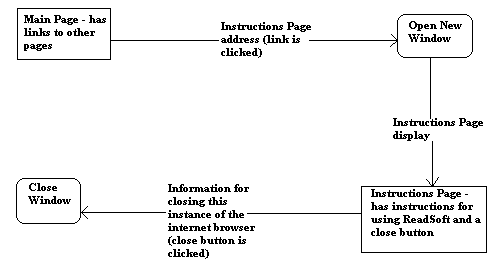
Use Case 05:
Instructions Page
Overview
The Instructions
Page is opened in a new window when the user clicks on the link for it.
Once the Instructions Page has been loaded, the instructions for the use
of ReadSoft and a close button are displayed.
Preconditions
The
user’s CPU has enough memory to open a new internet browser window.
Scenario
| Action | Software Reaction |
| The user clicks on the link to the Instructions Page on the Main Page | The internet browser opens a new window, sets the current address of the Instructions Page and downloads the components of the Instructions Page. The Instructions Page is displayed. |
| The user clicks on the "close" button | The instance of the internet browser containing the Instructions Page is closed and all data used solely for the Instructions Page have been deleted. |
Scenario Notes
Action 1 must occur first. Action 2 can occur at any time following the execution of
Action
1.
Post Conditions
The window that
contained the Instructions Page has been closed and all data used for
the Instructions Page and only for the Instructions Page has been
deleted.
Required GUI
Windows compatible internet browser.
Exceptions
None.
Use Cases Utilized
Main Page use case.
Timing Constraints
None.None
Files
accessed
Instructions Page.
Files
changed
None.
Use Case 06:
Information Page
Overview
The Information Page
is displayed in the current window when the user clicks on the link for it.
Once the Information Page has been loaded, information about ReadSoft and
a link to the main page are displayed.
Preconditions
None.
Scenario
| Action | Software Reaction |
| The user clicks on the link to the Information Page on the Main Page | The internet browser sets the current address to the address of the Information Page and downloads the components of the Instructions Page. The Instructions Page is displayed. |
| The user clicks on the link to the Main Page on the Instruction Page | The internet browser sets the current address to the address of the Main Page and downloads the components of the Main Page. The Main Page is displayed. |
Scenario Notes
Action 1 must occur first. Action 2 can occur at any time following the execution of
Action
1.
Post Conditions
The
internet browser has opened and displayed the Main Page.
Required GUI
Windows
compatible internet browser.
Exceptions
Use Cases Utilized
Main Page use case.
Timing Constraints
If the user is idle on this page for more than 10 minutes, the user is automatically logged out.
Use case 07: Reading Results Page
Overview
This web page shall display the reading time percentage and recall percentage of the user. A message shall also be displayed depending on the performance of the user. This page shall come up automatically after the last question of the reading assessment is answered. The interface shall have a link that gives the user the option to print the page. The reading time and number of questions gotten right by the user shall be stored in the database.
Preconditions
| Action | Software Reaction |
| 1. The user clicks on the "print" link at the bottom of the page. | 1. The system sends text information to the local printer. |
| 2. The user clicks on "Back to Main Page". | 2. The Internet browser is redirected to the Reading Assessment main page. |
Scenario Notes
None
Post Conditions
Exceptions
Required GUI
Use cases Utilized
Uses the module select_appropriate_message.
Timing Constraints
The user shall be logged off after 10 idle minutes on the system.
Error Messages
none
Files Accessed
Database files
Files Changed
Database files
Error messages
None.
Files
accessed
Information Page, Main Page.
Files
changed
None.
Module Name: select_appropriate_message
Module Type: function, returns appropriate message.
Arguments: 1.) number of questions the user got right. 2.) how long it took reader to read passage in seconds.
Error messages: None
Files Accessed: database files
Files Changed: database files
Narrative:
If reading time is less than average plus two standard deviations, then the following message is displayed.
"Your rate of reading as expressed as efficiency is considered normal for your input information"
If reading time is more than or equal to average plus to standard deviations, then give the following message:
"Based on your reading efficiency, it is recommended that you seek follow up professional assessment and determine appropriate accomodations to enhance academic performance. Some people with similar reading efficiencies have been diagnosed with learning disablities and greatly improve their academic performance with accomodations recommended by the professionals."
If recall percentage is above 65 percent, then print the following message:
"Your recall percentage is adequate for most academic work."
If recall percentage is less than 65 percent, then print the following message:
"Your recall percentage is low compared to other people of your age and other input information. It is recommended that you review the tips for improving reading and seek professional assessment and advice."
These messages shall be displayed on the evaluations page accordingly and will be included in the hard copy if the user chooses to print.
Use Case 08: Evaluations Page
Overview
This page allows the user to evaluate the Reading Assessment software by answering several questions. These questions are stored in the database. Each question has a scale from 1-7 that the user can select from. After answering all the questions, the user returns to the Reading Assessment main page by clicking the link that says "Back to Main Screen." The selections that the user makes are stored in the database.
Preconditions
Scenario
| Action | Software Reaction |
| 1. The user selects any one of the 7 radio button for each question. | 1. The radio button is selected. |
| 2. The user clicks on "Back to Main Screen" | 2. The Reading Assessments main page is loaded. |
Scenario Notes
Action 2. is the last of the sequence because this action takes the user out of the evaluations page.
Post Conditions
Exceptions
The database is not accessible.
Required GUI
GUIs for evaluations page and main page.
Use Cases Utilized
None
Timing Constraints
The user shall be logged off automatically after being idle for 10 minutes on the system.
Error Messages
None
Files Accessed
Database files
Files Changed
Database files
It is not currently described in the requirements document. Typically it is:
Windows 2000 Server machine Running IIS 5.0 FrontPage 2000 Extensions (or more recent version)
SQL Server 2000
It is not currently described in the requirements document. Typically it is:
Windows 2000 Server machine Running IIS 5.0 SQL Server 2000
Access via Internet Explorer version 4 (or later) or Netscape Navigator version 4 (or later)
| Items |
|
| Items |
|
NA
| Requirements Component | ID | Design Component | ID |
| NF | 1.1.1 | UI | 2.2.1 |
| NF | 1.1.1.1 | UI | 2.2.1 |
| NF | 1.1.1.2 | UI | 2.2.1 |
| NF | 1.1.1.3 | UI | 2.2.1 |
| NF | 1.1.1.4 | UI | 2.2.1 |
| NF | 1.1.1.5 | UI | 2.2.1 |
| NF | 1.1.1.6 | UI | 2.2.1 |
| NF | 1.1.1.7 | UI | 2.2.1 |
| NF | 1.1.1.8 | UI | 2.2.1 |
| NF | 1.1.1.9 | UI | 2.2.1 |
| NF | 1.1.1.10 | UI | 2.2.1 |
| NF | 1.2 | UI | 2.2.2 |
| NF | 1.2.1 | UI | 2.2.2 |
| NF | 1.2.2 | UI | 2.2.2 |
| NF | 1.2.3 | UI | 2.2.2 |
| NF | 1.2.4 | UI | 2.2.2 |
| NF | 1.3 | UI | 2.2.8 |
| NF | 1.3.1 | UI | 2.2.8 |
| NF | 1.3.1.1 | UI | 2.2.8 |
| NF | 1.3.1.2 | UI | 2.2.8 |
| NF | 1.3.2 | UI | 2.2.8 |
| NF | 1.3.2.1 | UI | 2.2.8 |
| NF | 1.3.2.2 | UI | 2.2.8 |
| F | 2.1.1 | DD | 5.1 |
| F | 2.1.2 | UI | 2.2.2 |
| F | 2.1.2.1 | DD | 5.2 |
| F | 2.1.2.1 | DD | 5.2 |
| F | 2.1.2.3 | DD | 5.2 |
| F | 2.1.3 | UI | 2.2.2 |
| F | 2.1.3.1 | DD | 5.2 |
| F | 2.1.3.2 | DD | 5.2 |
| F | 2.1.3.3 | DD | 5.2 |
| F | 2.1.3.4 | DD | 5.2 |
| F | 2.1.3.5 | DD | 5.2 |
| F | 2.1.4 | UI | 2.2.2 |
| F | 2.1.4.1 | DD | 5.2 |
| F | 2.1.4.2 | DD | 5.2 |
| F | 2.1.5 | UI | 2.2.2 |
| F | 2.1.5.1 | DD | 5.2 |
| F | 2.1.5.2 | DD | 5.2 |
| F | 2.1.5.3 | DD | 5.2 |
| F | 2.1.6 | UI | 2.2.2 |
| F | 2.1.6.1 | DD | 5.2 |
| F | 2.2 | DD | 5.1 |
| F | 2.2.1 | NA | NA |
| F | 2.2.2 | DD | 5.1 |
| F | 2.2.3 | DD | 5.5 |
| F | 2.3.1 | DD | 5.1.2 |
| F | 2.3.2.1 | DD | 5.1.2 |
| F | 2.3.2.2 | UI | 5.1.2 |
| F | 2.3.3.1 | DD | 5.1.2 |
| F | 2.3.3.2 | DD | 5.1.2 |
| F | 2.3.3.3 | UI | 5.1.2 |
| F | 2.3.4.1 | DD | 5.1.2 |
| F | 2.3.4.2 | DD | 5.1.2 |
| F | 2.3.4.3 | DD | 5.1.2 |
| F | 2.3.4.4 | DD | 5.1.2 |
| F | 2.4 | DD | N/A (to be placed in 5.1) |
| F | 2.4.1 | DD | N/A (to be placed in 5.1) |
| F | 2.4.3.1 | DD | N/A (to be placed in 5.1) |
| F | 2.4.3.2 | DD | N/A (to be placed in 5.1) |
| F | 2.4.3.3 | DD | N/A (to be placed in 5.1) |
| F | 2.4.3.4 | DD | N/A (to be placed in 5.1) |
| F | 2.4.3.5 | DD | N/A (to be placed in 5.1) |
| F | 2.4.3.6 | DD | N/A (to be placed in 5.1) |
| F | 2.4.3.7 | DD | N/A (to be placed in 5.1) |
| F | 2.4.3.8 | DD | N/A (to be placed in 5.1) |
| F | 2.4.3.9 | DD | N/A (to be placed in 5.1) |
| F | 2.4.3.10 | DD | N/A (to be placed in 5.1) |
| F | 2.5.1 | DD | 2.3 |
| F | 2.5.2.1 | DD | N/A (to be placed in 3.3) |
| F | 2.5.2.2 | DD | 2.3 |
| F | 2.5.2.3 | DD | 2.3 |
| F | 2.6 | UI | 2.3.1/2.2.7 |
| F | 2.6 | DD | 5.1.6 |
| F | 2.6.1 | UI | 2.3.1 |
| F | 2.6.1 | DD | 5.1.6 |
| F | 2.6.3 | UI | 2.3.1 |
| F | 2.6.3 | DD | 5.1.6 |
| F | 2.6.3.1 | UI | 2.3.1 |
| F | 2.6.3.1 | DD | 5.1.6 |
| F | 2.6.4 | UI | 2.3.1 |
| F | 2.6.4 | DD | 5.1.6 |
| F | 2.6.4.1 | UI | 2.3.1 |
| F | 2.6.4.1 | DD | 5.1.6 |
| F | 2.6.5 | UI | 2.3.1 |
| F | 2.6.5 | DD | 5.1.6 |
| F | 2.6.5.1 | DD | 5.1.6 |
| F | 2.6.5.1 | UI | 2.3.1 |
| F | 2.6.5.1.1 | DD | 5.1.6 |
| F | 2.6.5.1.1 | UI | 2.3.1 |
| F | 2.6.5.1.2 | DD | 5.1.6 |
| F | 2.6.5.1.2 | UI | 2.3.1 |
| F | 2.6.5.1.3 | DD | 5.1.6 |
| F | 2.6.5.1.3 | UI | 2.3.1 |
| F | 2.6.6 | DD | 5.1.6 |
| F | 2.6.6 | UI | 2.3.1 |
| F | 2.6.7 | DD | 5.1.6 |
| F | 2.6.7 | UI | 2.3.1 |
| F | 2.7.1 | DD | 5.1.3 |
| F | 2.7.1 | UI | 2.2.8 |
| F | 2.7.2.1 | DD | 5.1.3 |
| F | 2.7.2.1 | UI | 2.2.8 |
| F | 2.7.2.2 | DD | 5.1.3 |
| F | 2.7.2.2 | UI | 2.2.8 |
| F | 2.7.3.1 | DD | 5.1.3 |
| F | 2.7.3.1 | UI | 2.2.8 |
| F | 3.1 | NA | NA |
| F | 3.2 | NA | NA |
| F | 3.3 | NA | NA |
| F | 3.4 | NA | NA |
| F | 3.5 | NA | NA |
| F | 4.1 | DS | 3.3 |
| F | 4.2 | DS | 3.3 |
| F | 4.3 | DS | 3.3 |
| F | 4.4.1.1 | DS | 3.3.2 |
| F | 4.4.1.2 | DS | 3.3.2 |
| F | 4.4.1.3 | DS | 3.3.2 |
| F | 4.4.1.4 | DS | 3.3.2 |
| F | 4.4.1.5 | DS | 3.3.2 |
| F | 4.4.1.6 | DS | 3.3.2 |
| F | 4.4.1.7 | DS | 3.3.2 |
| F | 4.4.1.8 | DS | 3.3.2 |
| F | 4.4.1.9 | DS | 3.3.2 |
| F | 4.4.1.10 | DS | 3.3.2 |
| F | 4.4.2 | DS | 3.3.2 |
| F | 4.4.3 | DS | 3.3.1 |
| F | 4.5 | DS | 3.3.1 |
| F | 4.5.1.1 | DS | 3.3.1 |
| F | 4.5.1.2 | DS | 3.3.1 |
| F | 4.5.1.3 | DS | 3.3.1 |
| F | 4.5.1.4 | DS | 3.3.1 |
| F | 4.5.1.5 | DS | 3.3.1 |
| F | 4.5.2 | DS | 3.3 |
| F | 4.5.2.1 | DS | 3.3 |
| F | 4.6 | NA | NA |
| F | 5.1 | UI | 2.2 |
| F | 5.2 | UI | 2.2 |
| F | 6.1 | NA | NA |
| F | 6.2.1 | NA | NA |
| F | 6.2.2 | NA | NA |
| F | 6.3.1 | NA | NA |
| F | 6.4.1 | NA | NA |
| F | 6.5.1 | NA | NA |
| U | 10.1 | DD | 5.1 |
| U | 10.2 | DD | 5.1.2 |
| Date | Name | Revision |
| 11-8-01 | Brent Job | Created Table of contents, Design approach, and inserted architecture. |
| 11-19-01 | Brent Job | Inserted user interaction, data storage, and implementation platform sections |
| 11-26-01 | Brent Job | Minor changes to all existing sections. Added the external system interface section. |
| 12-1-01 | Brent Job | Added the cross reference table, and detailed design sections. Updated the user interface section. |
| 03-17-02
|
Ayotunde Phillips |
|
| 03-21-02 | Ayotunde
Phillips |
|
| 03-26-02 | Ayotunde Phillips |
|
| 04-02-02 | Ayotunde Phillips |
|
| 04-09-02 | Ayotunde
Phillips |
|