c:\Program Files\Java\jdk1.6.0_XX. (Note that is
jdk, not
jre.)
Warning...this BIG file takes a long time to unzip.

Note: All new laptops since 2007 came with Java 1.6 (also called Java 6). These directions are intended for anyone needing to do a clean install or wanting the latest JDK update.
Follow these instructions to install:
J2SE 6.0 – Java 2 Platform Standard Edition 6.0, Update26, which includes:
The J2SE Development Kit (JDK) supports creating J2SE applications
The J2SE Runtime Environment (JRE) allows end-users to run Java applications
Do the following when you are on campus or somewhere with a fast internet connection. It may take a little while.
Use Control Panel → Uninstall a Program for the above two items.
For trouble-shooting instructions or for other hardware/operating systems (such as Linux), visit Sun's site for downloading Java. You do not need to go to Sun's site unless you want additional information. We maintain a local copy of the regular installer. Note: JDK 6.0 was once known as JDK 1.6, so certain folders and filenames use 1.6 as the version number instead of 6.0.
Sun provides HTML documentation for the Java Development Kit (JDK) Application Program Interface (API). By installing the documentation and configuring Eclipse, you can access the documentation by pressing the Help key in Eclipse.
All Rose laptops come with Java 6 documentation installed.
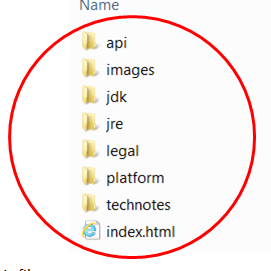
If your laptop includes the directory
					c:\Program
			Files\Java\jdk1.6.0_XX\docs
, (where XX
is a two-digit number) you may skip this step.
c:\Program Files\Java\jdk1.6.0_XX. (Note that is
jdk, not
jre.)